Create IAM Limited User
Create IAM Limited User
After creating a policy that limits maximum permissions, we will create an IAM user and apply the permission limit to that user.
- Login to IAM Management Console
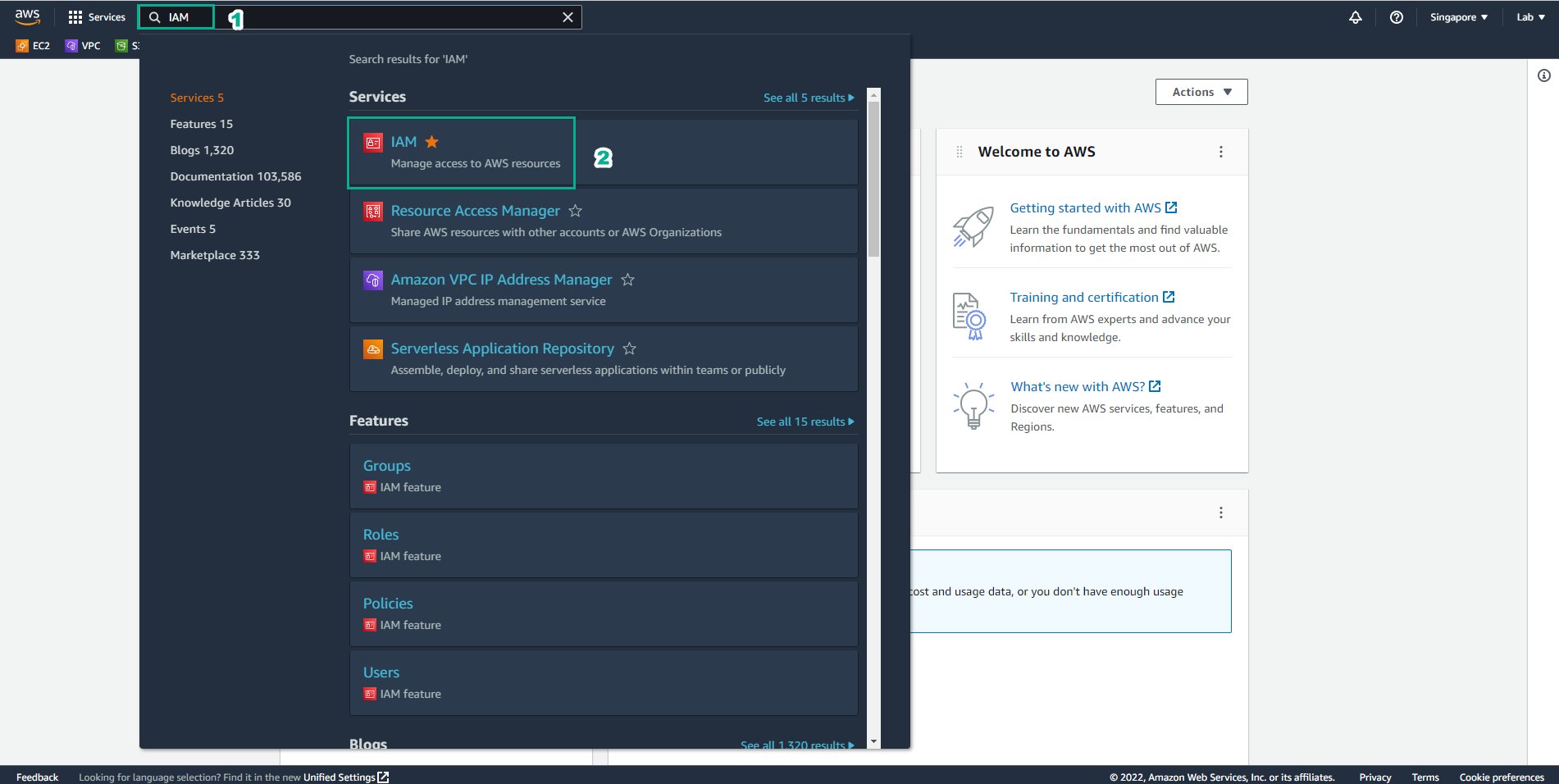
- In the left sidebar, select IAM Users and then select Create user.
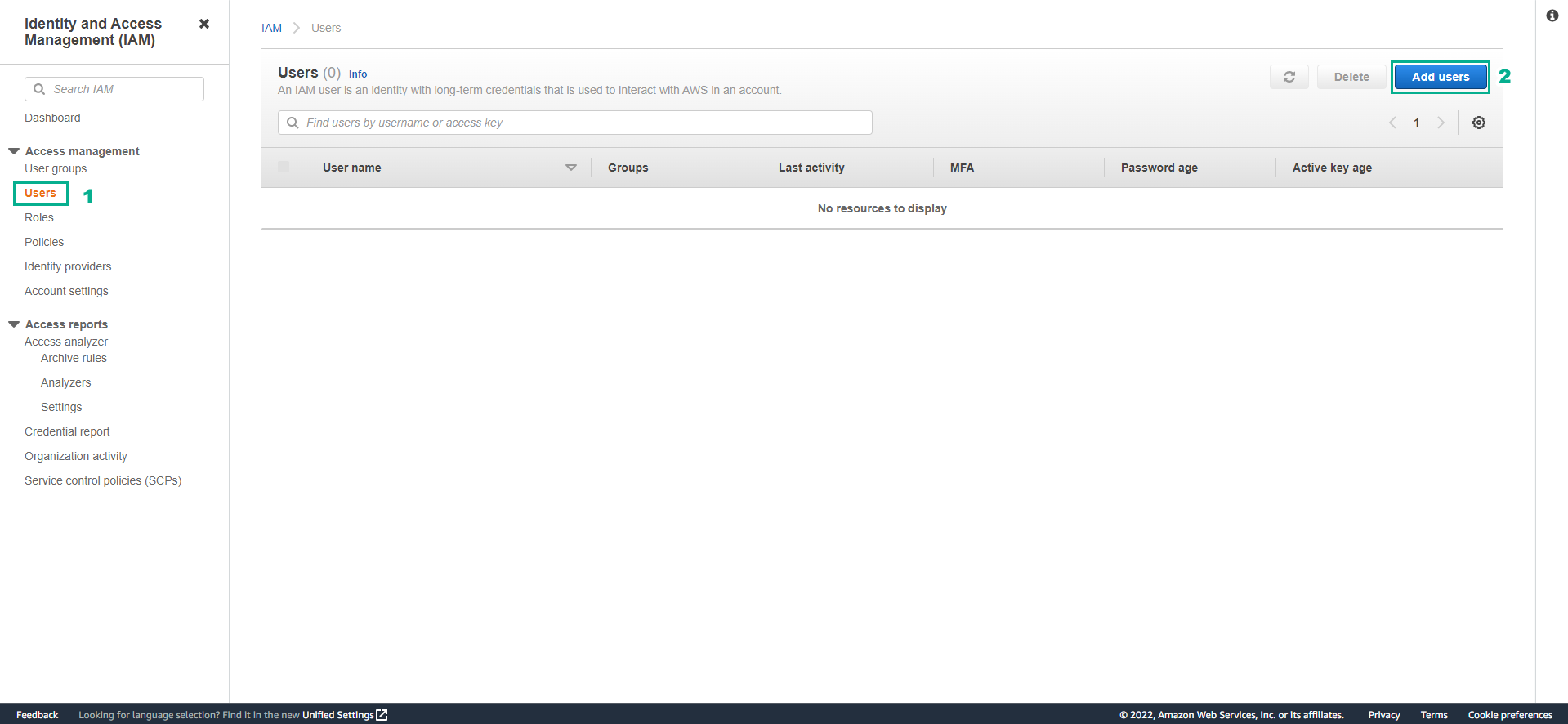 3. On the Specify user details page, enter the following parameters and then select Next:
- User name:
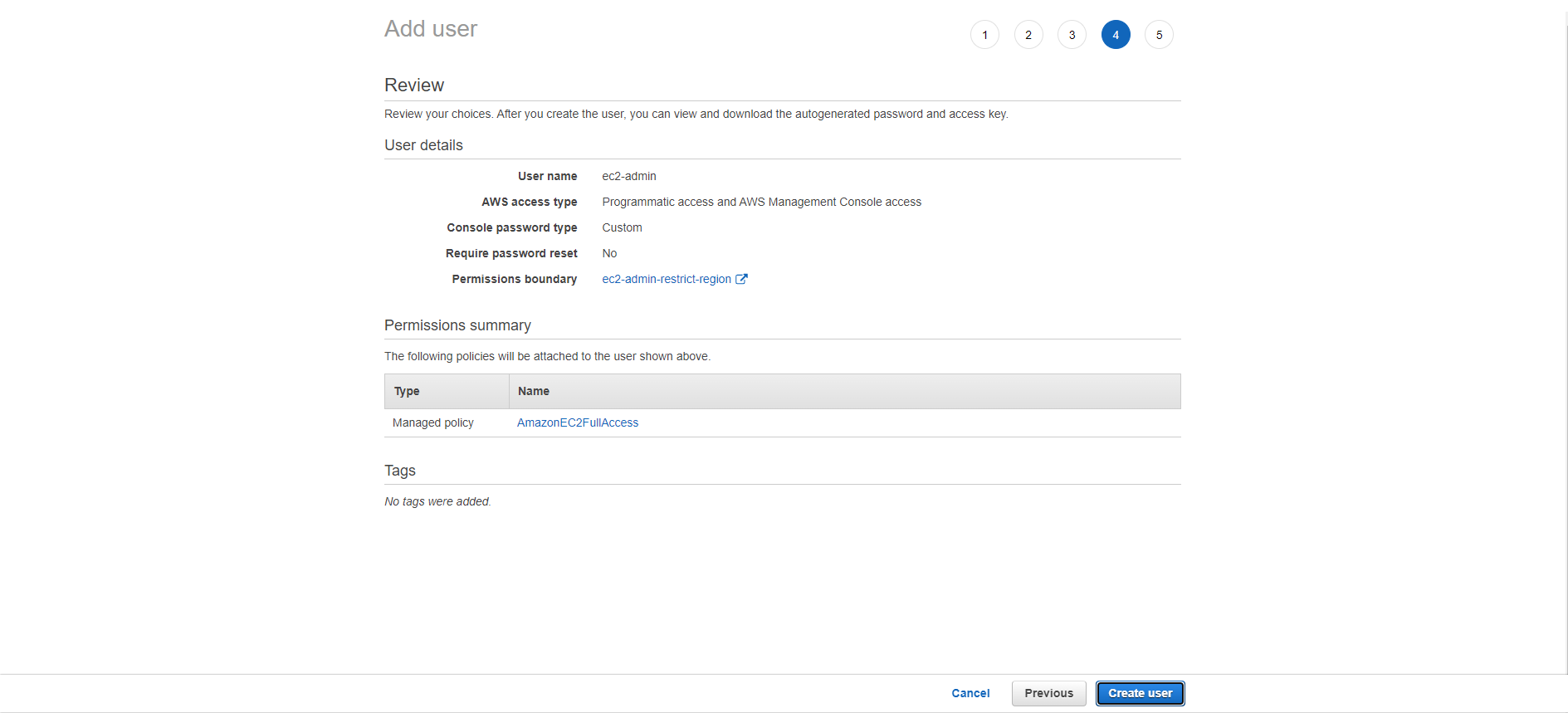
ec2-admin - Access type: Select AWS Management Console access to allow users to login to AWS Management Console.
- Are you providing console access to a person? (You can skip this if you don’t see it), select I want to create an IAM user.
- Select Custom Password and set a password of your choice.
- Uncheck “User must create a new password at next sign-in”.
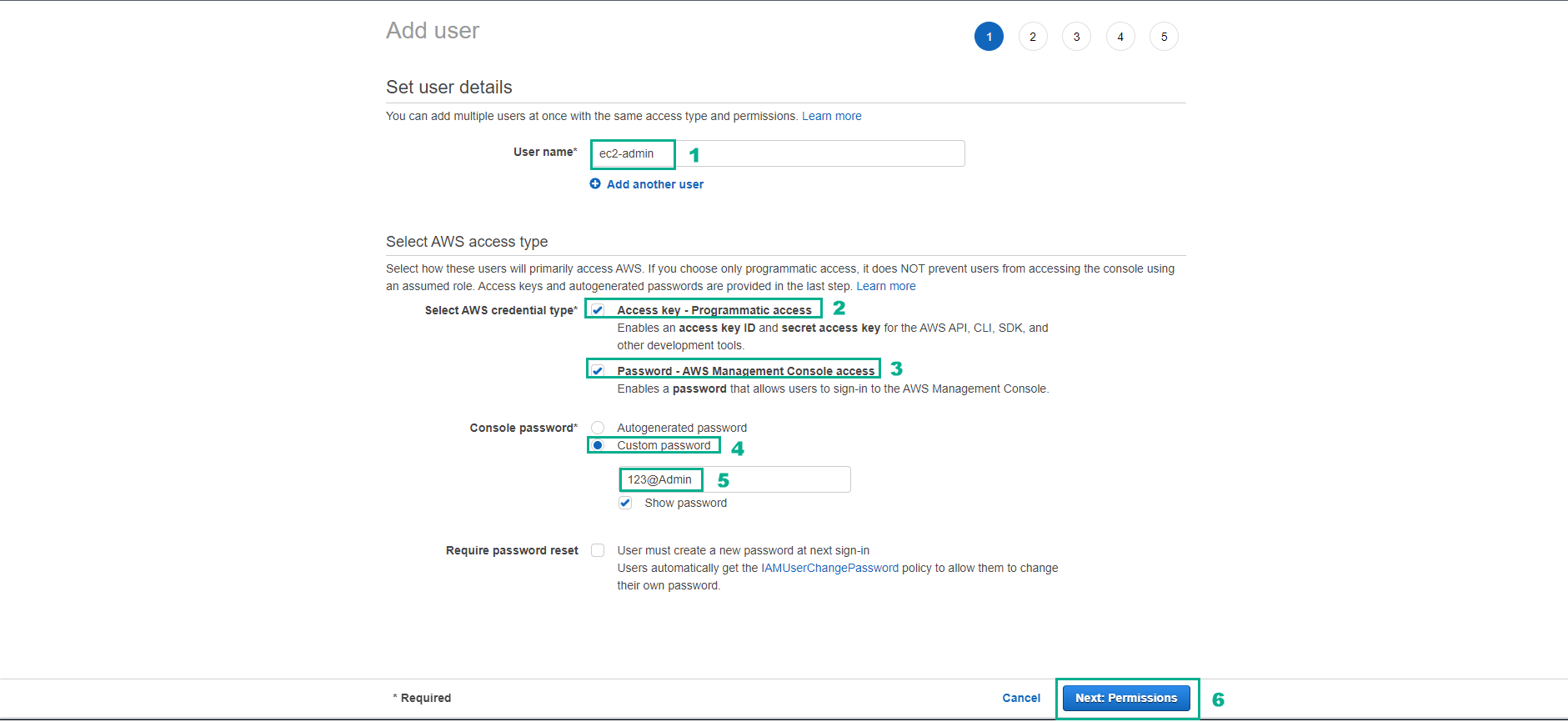
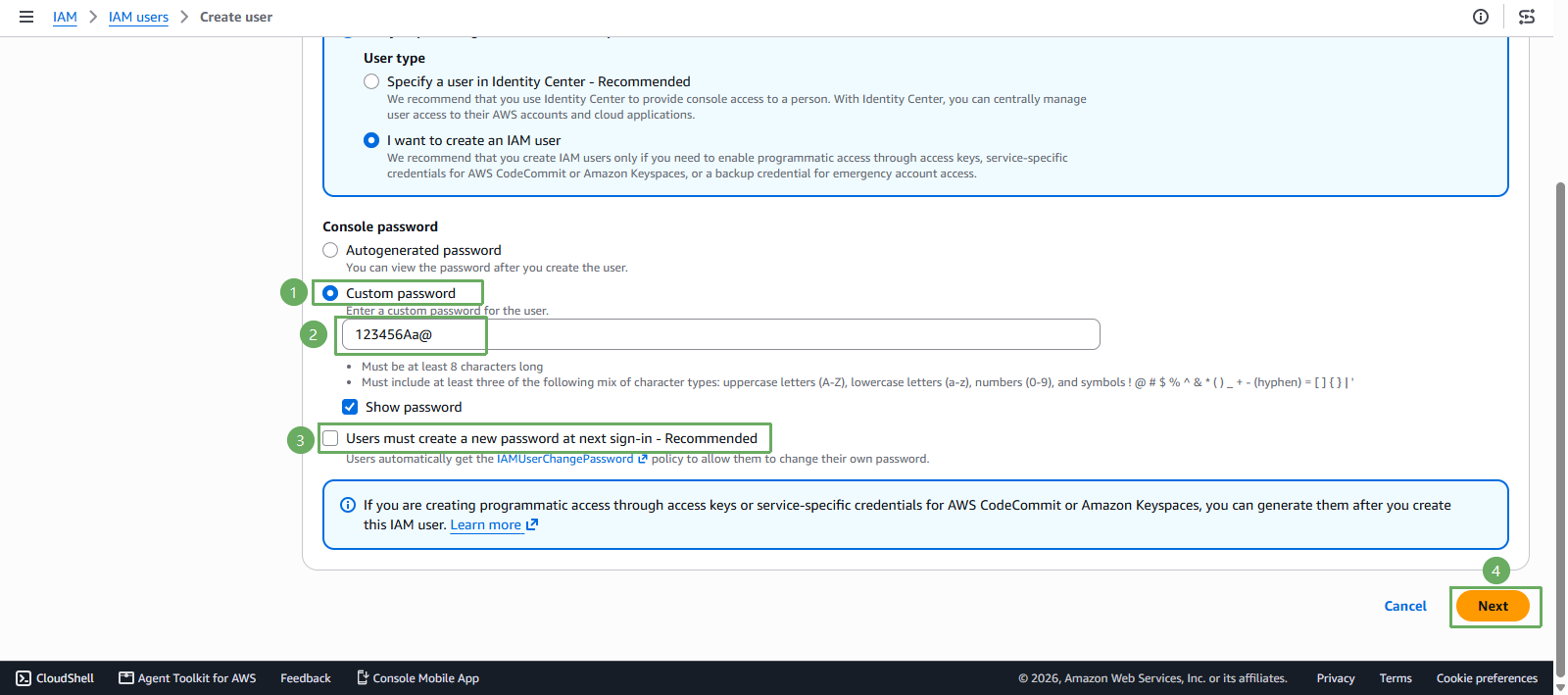
- In the Set permissions section, you need to do the following:
- Select Attach policies directly to assign policy directly to IAM user.
- Find and tick AmazonEC2FullAccess to assign EC2 admin rights to IAM user.
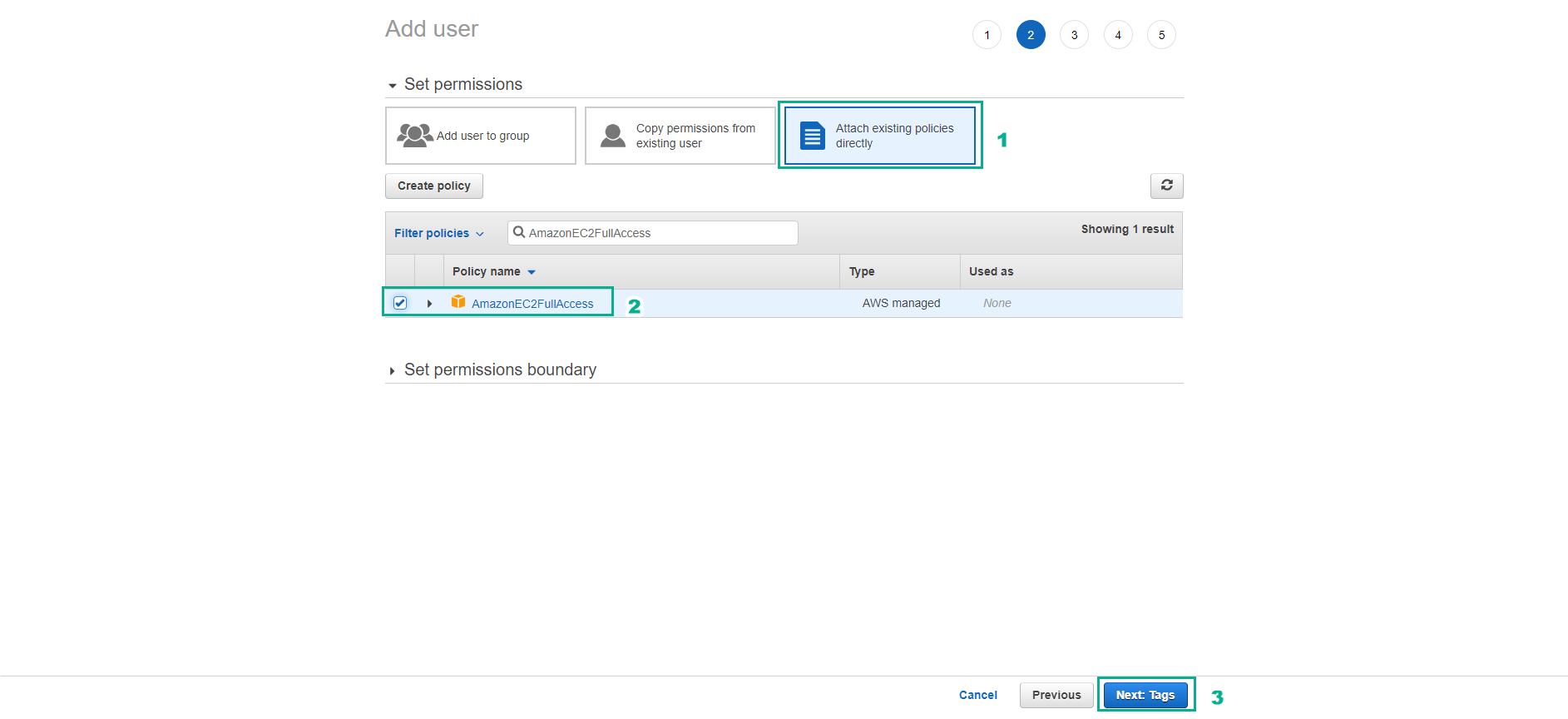
Then expand the Set permissions boundary section and:
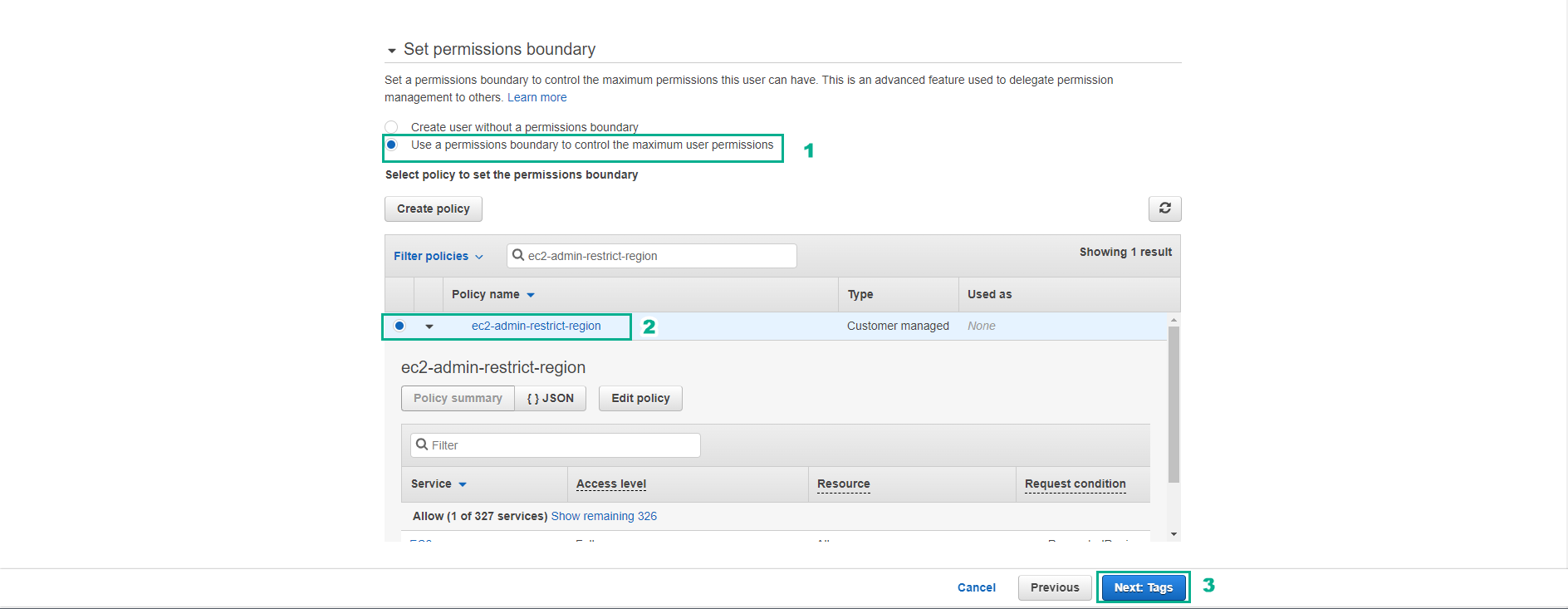
- Select Use a permissions boundary to control the maximum permissions
- In the Search box, type “ec2-admin-restrict-region” to find and select the restriction policy we created.
- Check and select Next
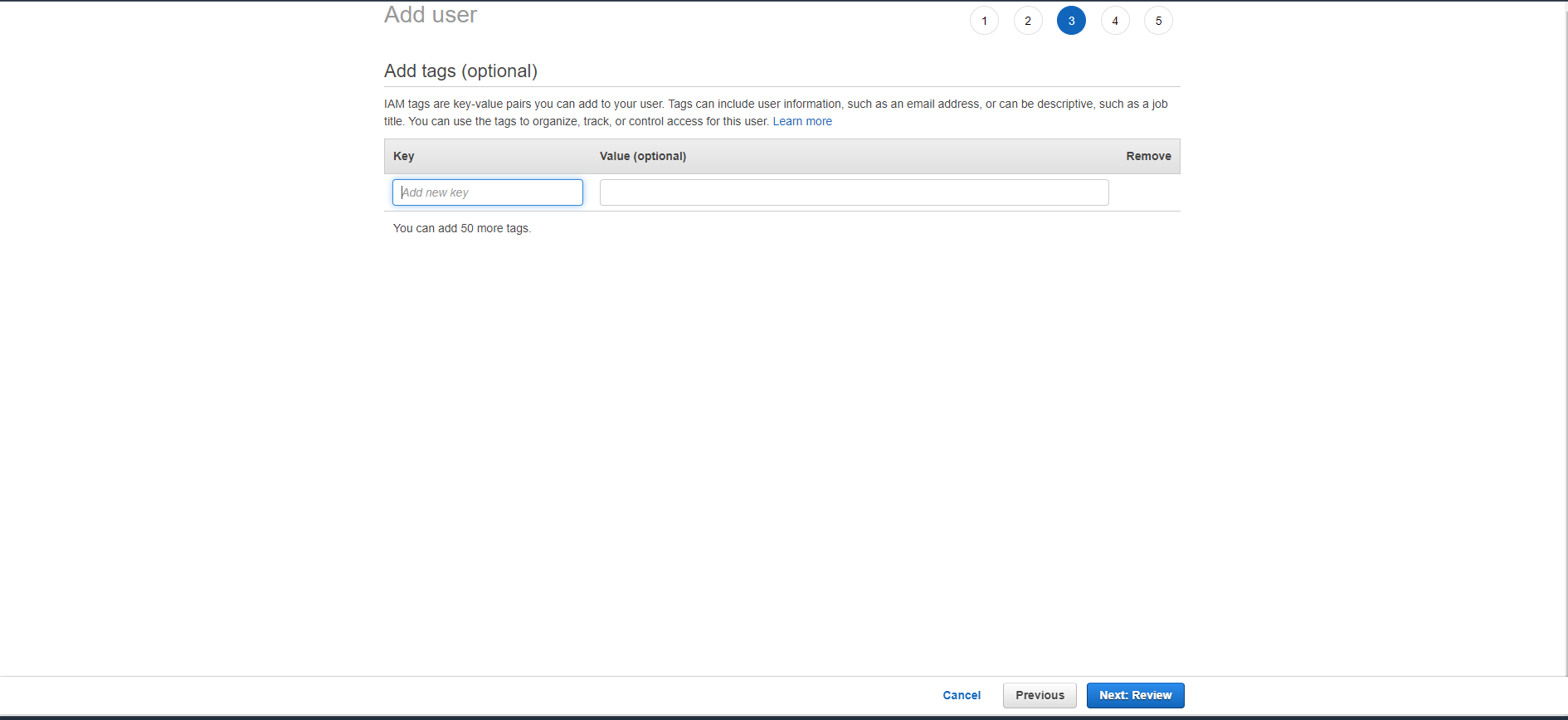
Scroll down to Tags - optional, keep the defaults and select Create user.
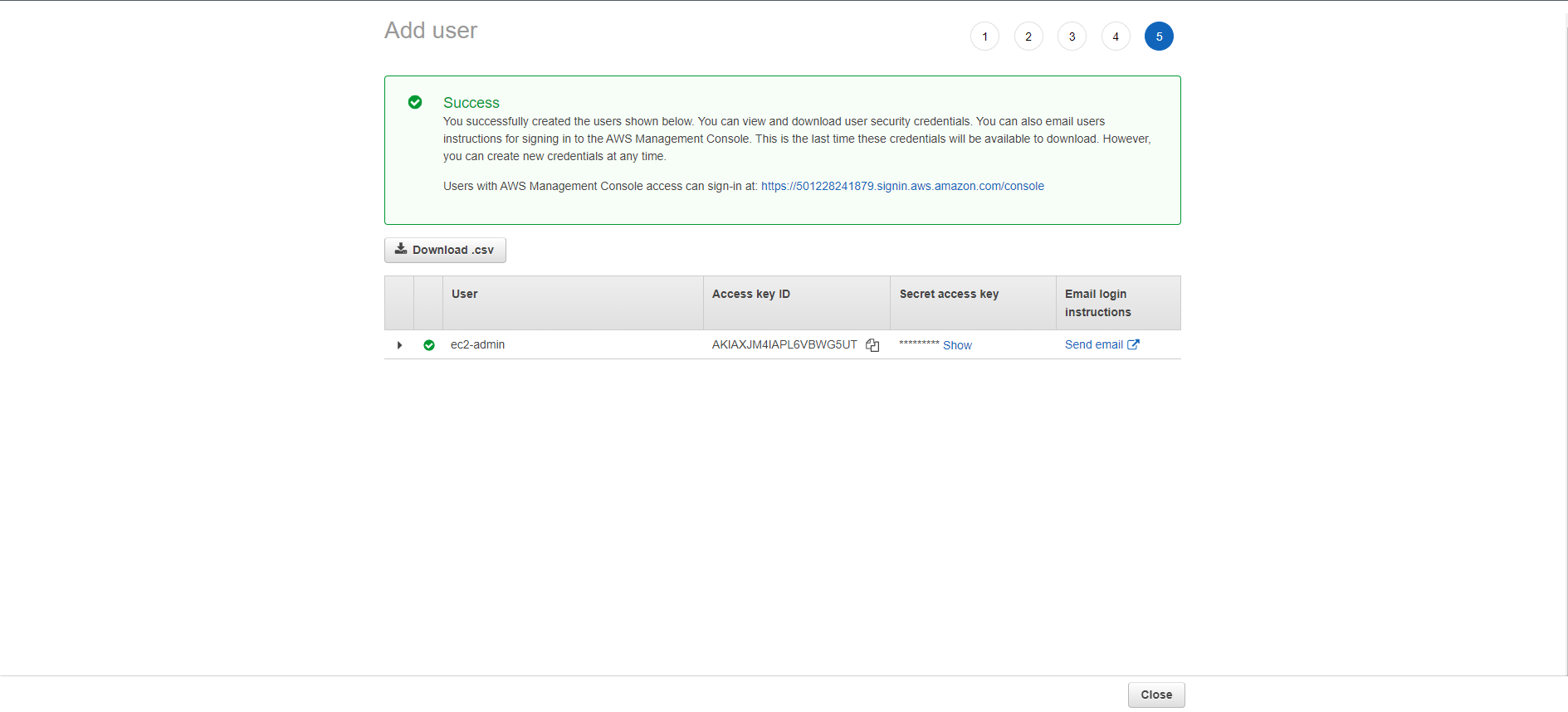
Thus, the user has been created successfully. In the next step, we will log in with the newly created ec2-admin user to check if that user can create EC2 instances in a Region different from the Region we have limited.
- We will use this IAM user for the next step.