Test IAM User Limits
Check IAM User Limit
In this section, you will check to see if the user with the AmazonEC2FullAccess permission is restricted by the Permission Boundary ec2-admin-restrict-region you created.
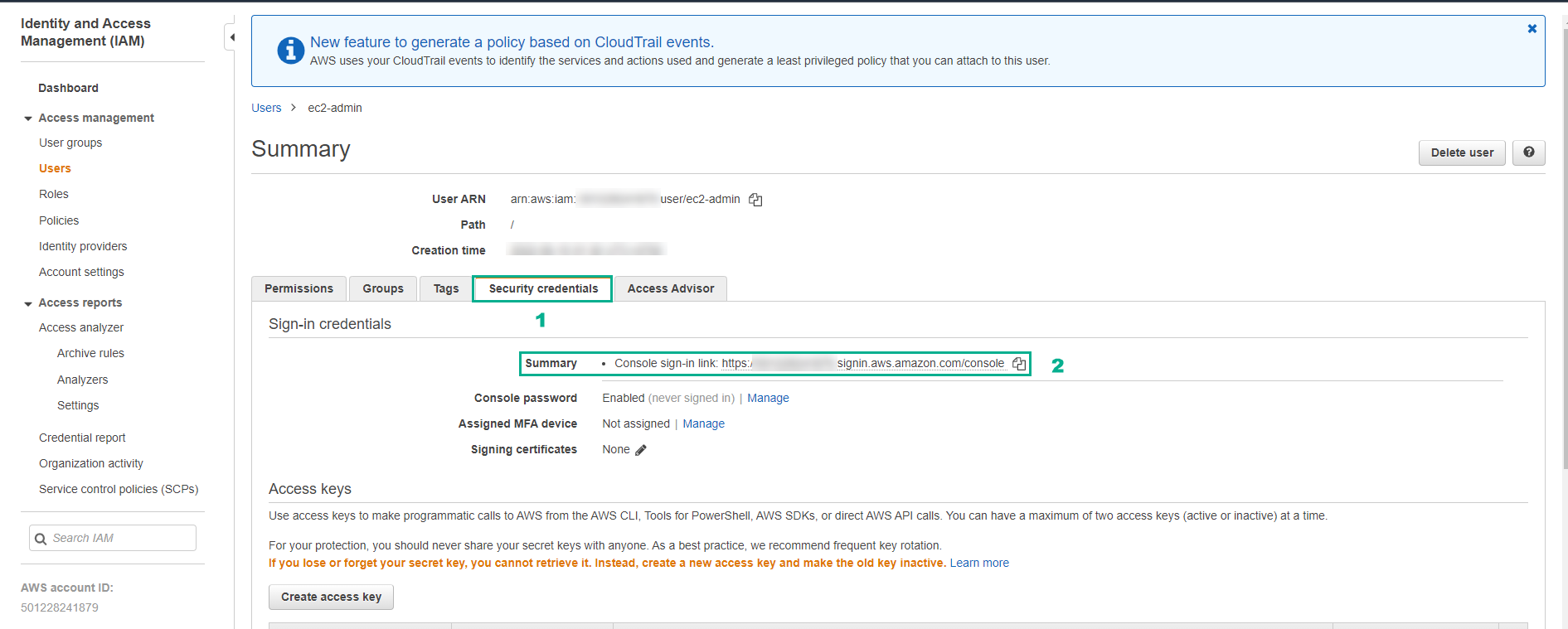
- In the left sidebar, select Users and select the user ec2-admin you just created.

- Select the Security credentials tab, copy the Console sign-in link, and access that link in your browser in incognito mode or use another browser.
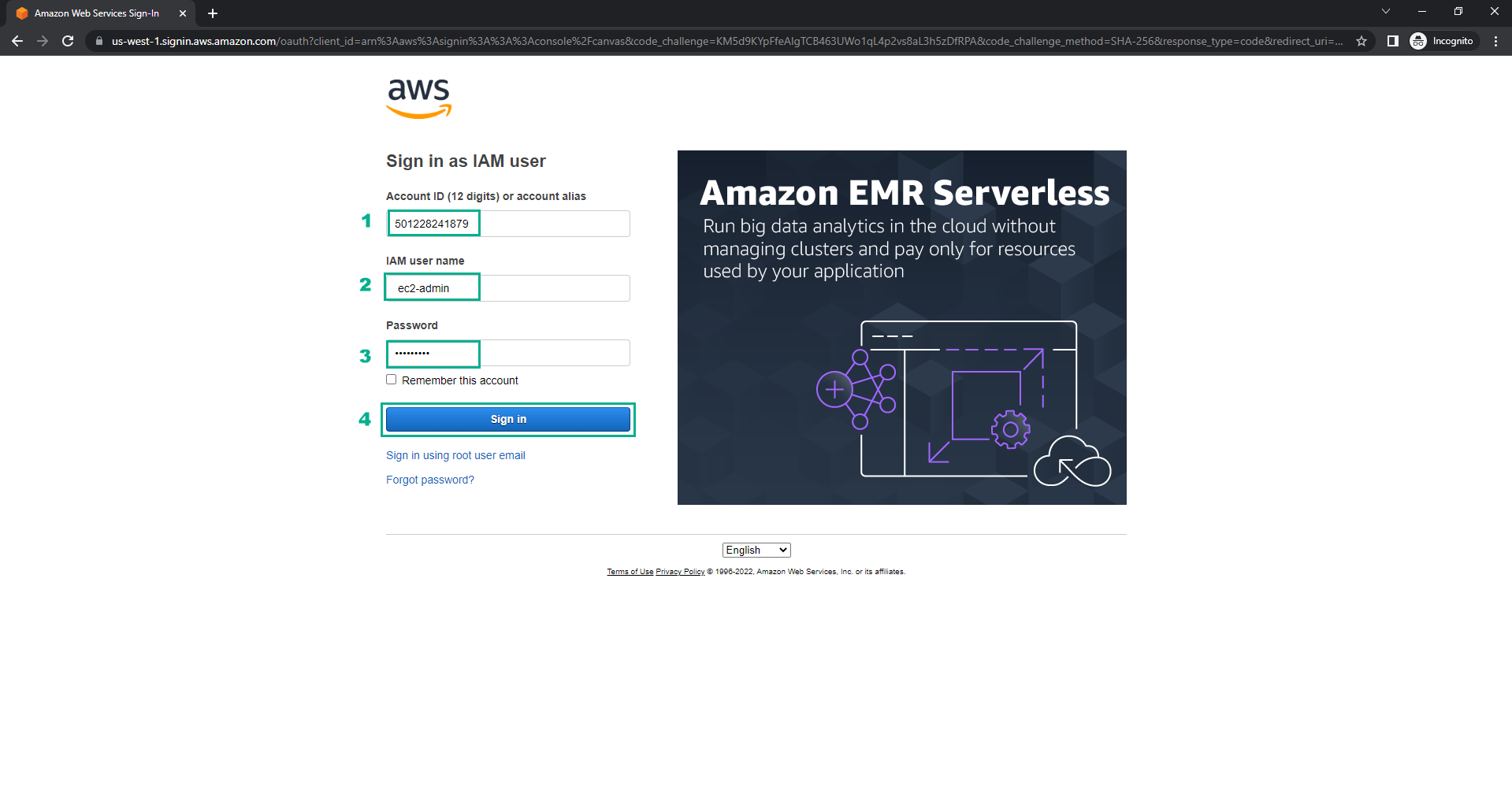
- On the Sign in as IAM user page, enter the following information to log in to the ec2-admin user:
- Account ID or alias: This section is automatically filled in.
- IAM User name: ec2-admin
- Password: the password you chose.
- Click Sign in.
- Reminder: The Permission Boundary ec2-admin-restrict-region that you created only allows users to access the EC2 service while in region ap-southeast-1 (Singapore).
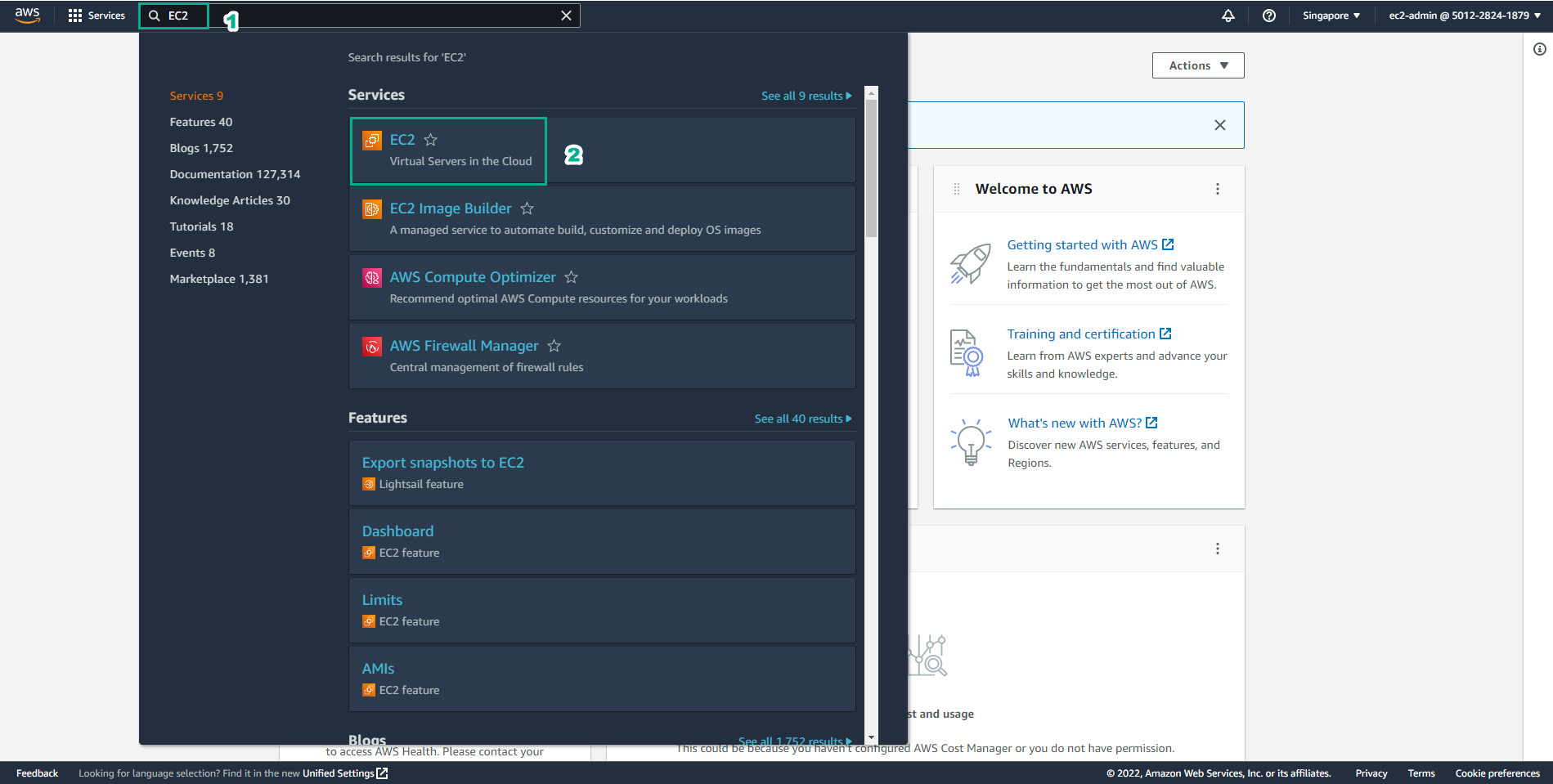
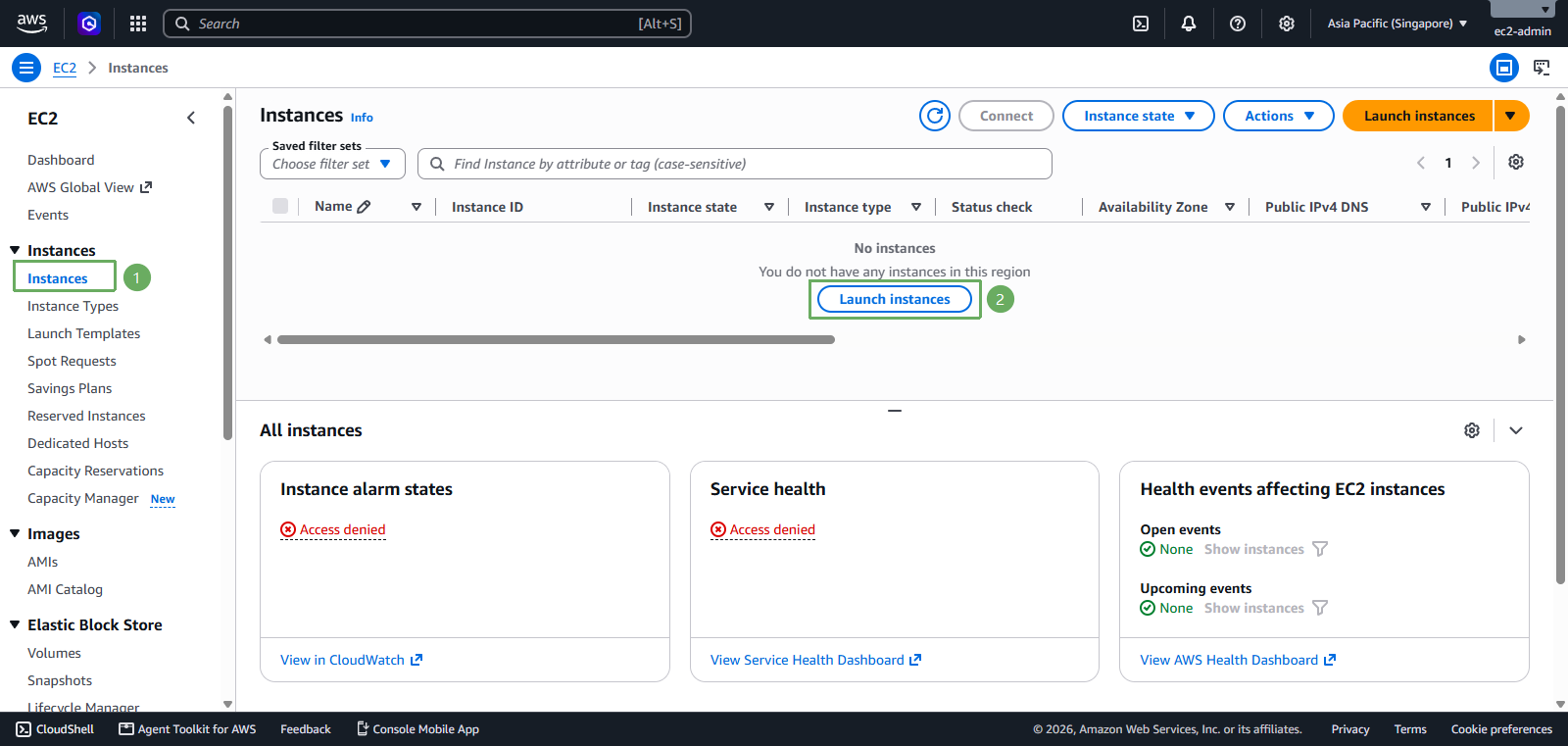
- In the AWS Management Console of the ec2-admin user, select region ap-southeast-1 (Singapore) and access the EC2 service using the search bar. You should see that the EC2 service should work properly.
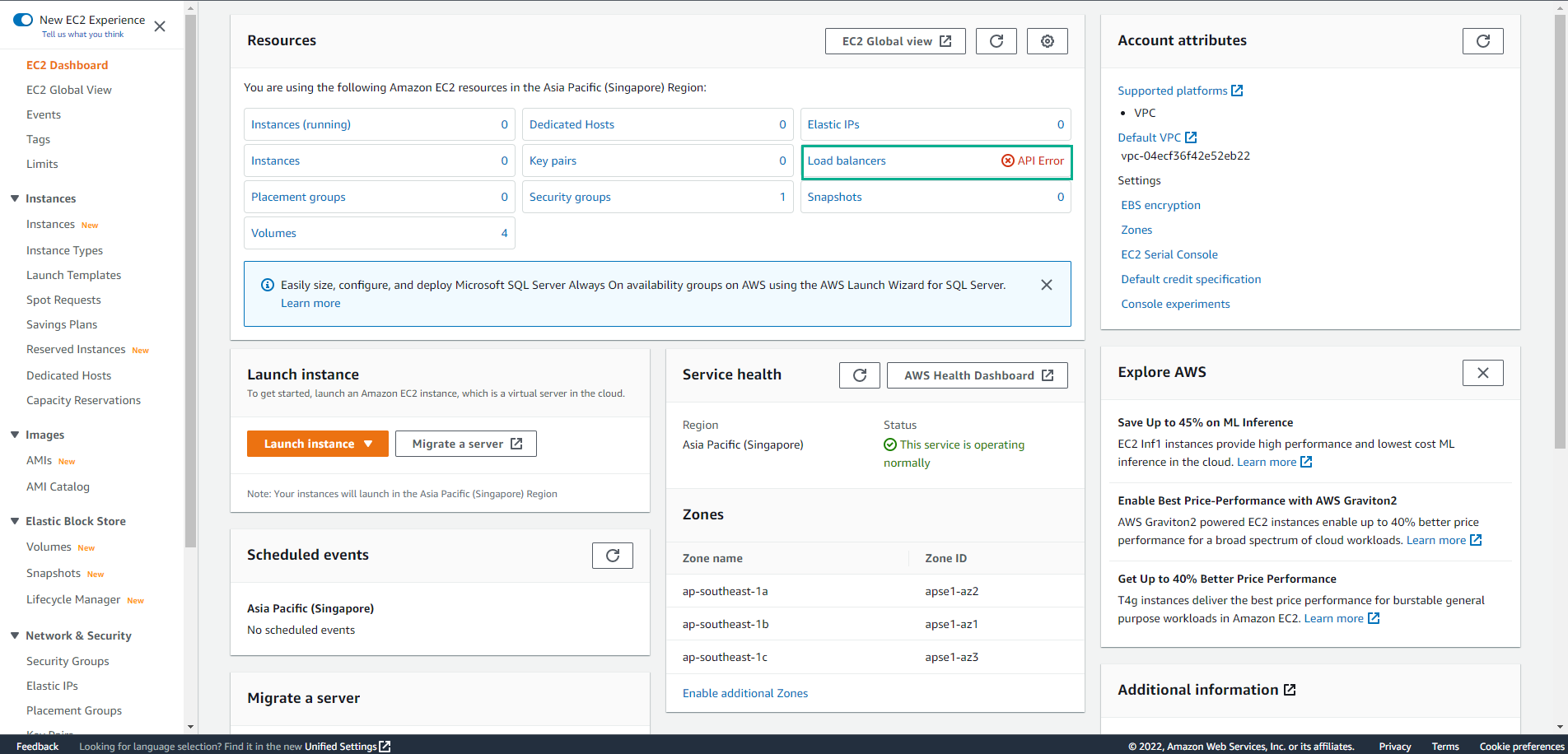
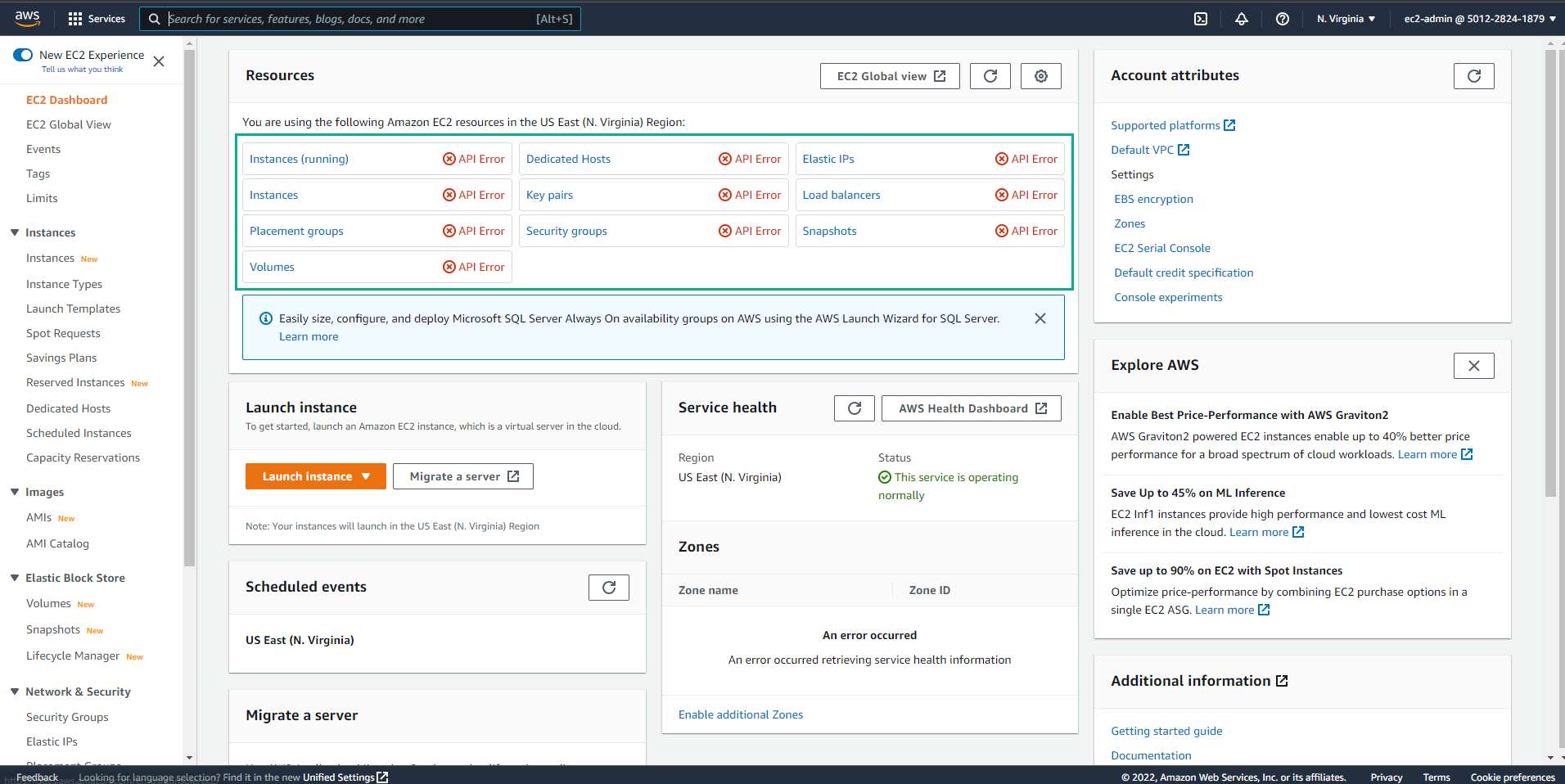
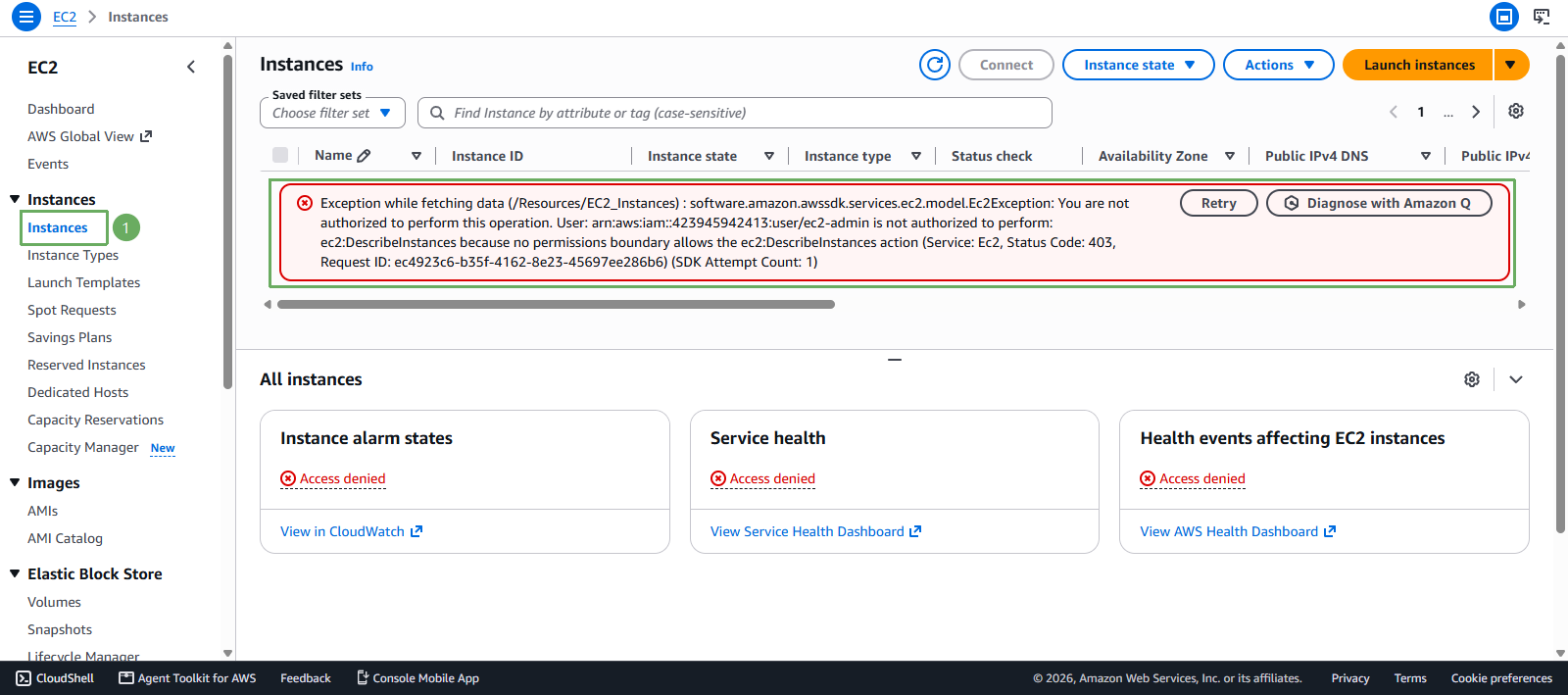
- Change the Region in the upper right hand corner to ap-southeast-2 (Sydney). You can see that, despite being granted the highest level of EC2 service administration rights, because we have restricted permissions to only allow EC2 administration on Region Singapore, the IAM user we created will have no EC2 rights on Region Sydney.
Through this lab, hopefully you can utilize the powerful Permission Boundary feature to better limit permissions for IAM users. Thank you for taking the time to do this lab. Have a great day!